
engage
engage
How to Create and Use Message Variables in Nomni Engage
How to Create and Use Message Variables in Nomni Engage
How to Create and Use Message Variables in Nomni Engage
Use message variables in Nomni Engage to streamline hospitality emails. Update once, apply everywhere, and stay consistent across every campaign.
Use message variables in Nomni Engage to streamline hospitality emails. Update once, apply everywhere, and stay consistent across every campaign.
Written by

Nomni
The ultimate hospo solution
Operating multiple venues or managing seasonal campaigns requires consistent, accurate communication. Updating promotional terms, trading hours or event messaging across numerous campaigns can create operational strain.
Nomni Engage is built specifically for hospitality and supports structured personalisation while maintaining brand consistency across venues.
Message variables simplify updates. Instead of manually editing each campaign, venues can centralise key information and apply changes across all relevant communications instantly. This reduces errors and ensures aligned messaging across locations and channels.
What is a message variable?
A message variable in Nomni Engage is a reusable block of content that can be inserted into multiple emails or campaigns using a simple tag, such as %Easter_Promo%.
These blocks can contain text, images, links, tables or lists. For example, instead of manually adding contact details, social links and logos into every campaign, you can insert a variable such as %Contact%.
When a message variable is updated in Nomni Engage, the change applies automatically to all future emails that reference it.
This reduces manual edits, formatting inconsistencies and version control issues. If information needs to change at short notice, such as updated trading hours or promotional terms, you can adjust the variable once rather than editing each individual campaign.
Message variables can be used selectively within emails. Common applications include company signatures, social links, disclaimers, trading hours, event details and product announcements.
How is a message variable different from a personalisation tag?
A message variable inserts the same content for every recipient, like a signature or disclaimer. A personalisation tag pulls in unique contact-specific details, like a first name. One is about consistency; the other is about personalisation.
How to create a message variable on Nomni Engage:
Navigate to Message Variables:
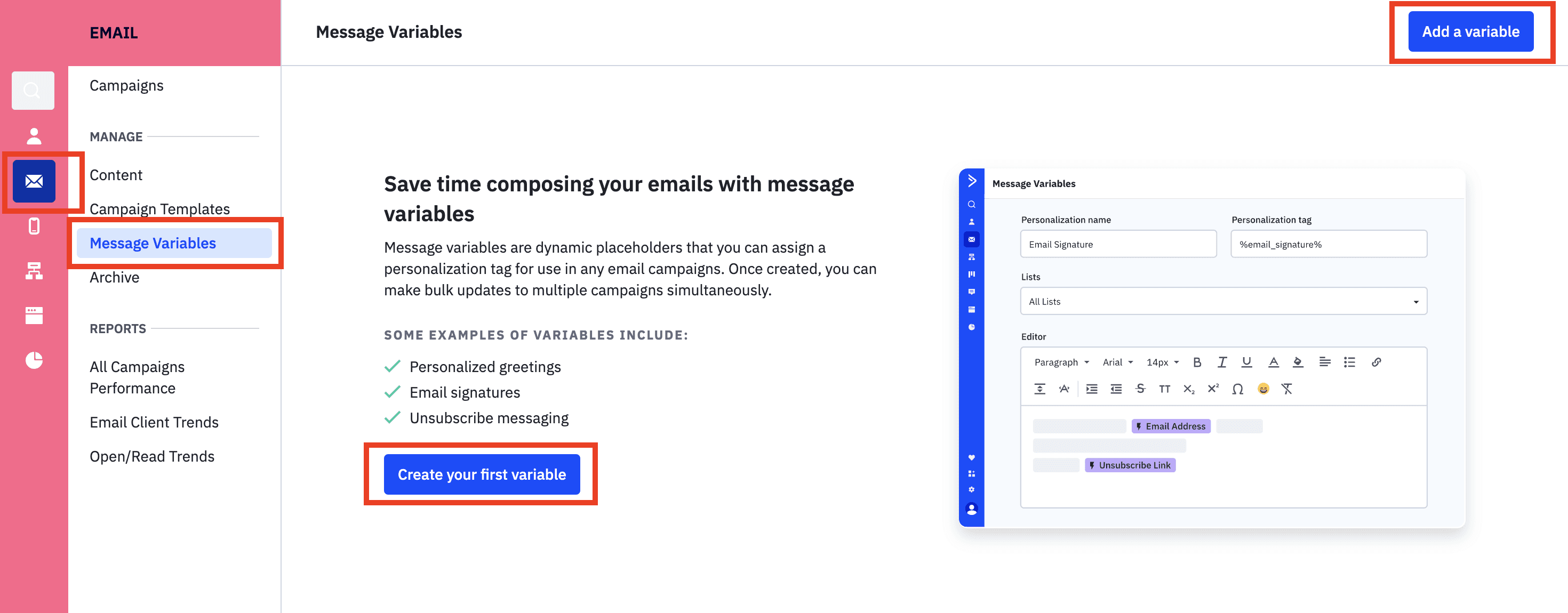
Log into your Liven Engage account.
Click on "Email" in the main menu > Select “Message Variables” under “Manage”.
Create a New Variable
Click “Create your first variable” or “Add a variable.”
In the Personalisation Name field, enter a clear internal label (for example, “Company Signature”). This is for internal reference only.
In the Personalisation Tag field, define the tag you will insert into emails (for example, %COMPANY_SIGNATURE%).
Note: Message variables are not case-sensitive. Use a single word or separate words with an underscore.
Assign to Lists
Select the email list or lists the variable should apply to.
Use Shift or Command to select multiple lists where required.
This ensures the variable is available only to relevant campaigns.
Set Format and Content
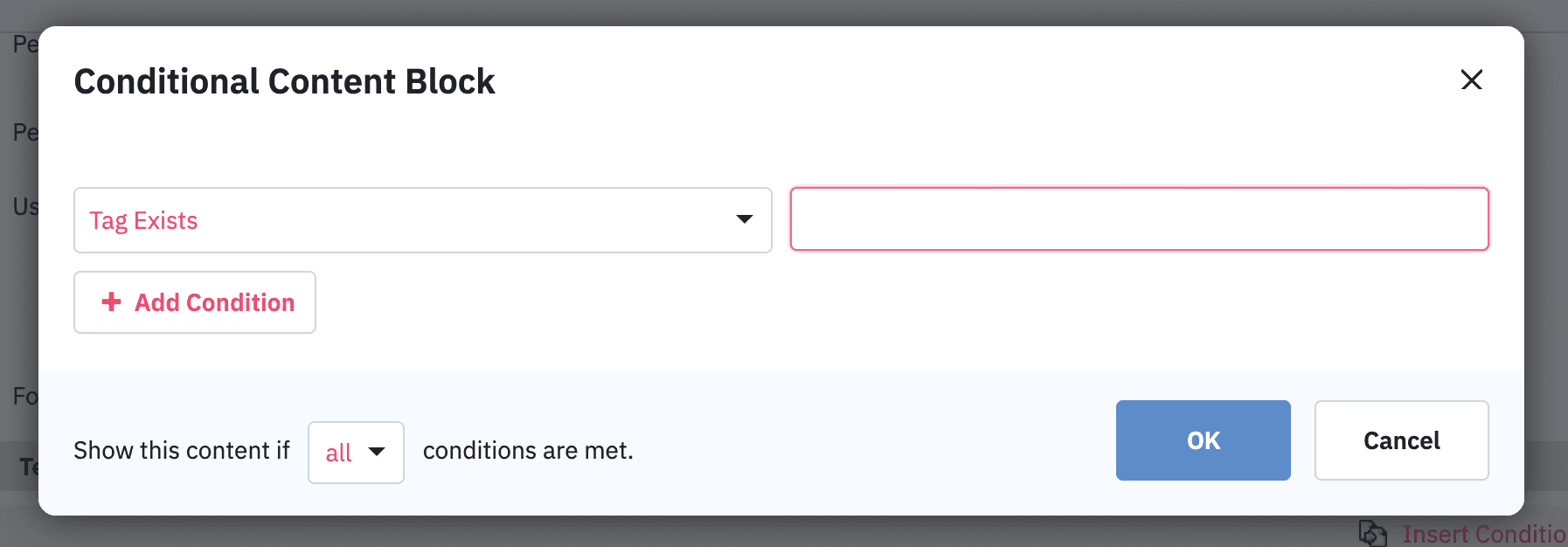
Choose HTML if you need formatted content such as images, buttons, links or styled text.
Choose Plain Text if you require dynamic personalisation, such as first names or conditional logic (for example, displaying content only if a specific tag exists).
In the editor box, input the content you want the variable to represent.
Click Save, then confirm by selecting “Add a variable” to finalise it.
Note: The font size and styling set inside the variable will override the formatting used in the rest of the email.
Your message variable is now ready to use in campaigns. It will only be available within the lists you assigned during setup.
Pro Tip: When starting out, assign the variable to all contact lists to maximise flexibility. As your campaigns become more segmented, you can restrict variables to specific lists where relevant.
Using message variables in Nomni Engage helps maintain consistency across communications while reducing manual edits. For venue groups managing multiple locations, seasonal promotions or frequent updates, this removes duplication and lowers the risk of outdated messaging.
Most email platforms are not designed for the pace and operational complexity of hospitality. Nomni Engage is built for it. Features like message variables allow you to deliver structured, on-brand communication at scale, whether you operate a single venue or a national group.
Operating multiple venues or managing seasonal campaigns requires consistent, accurate communication. Updating promotional terms, trading hours or event messaging across numerous campaigns can create operational strain.
Nomni Engage is built specifically for hospitality and supports structured personalisation while maintaining brand consistency across venues.
Message variables simplify updates. Instead of manually editing each campaign, venues can centralise key information and apply changes across all relevant communications instantly. This reduces errors and ensures aligned messaging across locations and channels.
What is a message variable?
A message variable in Nomni Engage is a reusable block of content that can be inserted into multiple emails or campaigns using a simple tag, such as %Easter_Promo%.
These blocks can contain text, images, links, tables or lists. For example, instead of manually adding contact details, social links and logos into every campaign, you can insert a variable such as %Contact%.
When a message variable is updated in Nomni Engage, the change applies automatically to all future emails that reference it.
This reduces manual edits, formatting inconsistencies and version control issues. If information needs to change at short notice, such as updated trading hours or promotional terms, you can adjust the variable once rather than editing each individual campaign.
Message variables can be used selectively within emails. Common applications include company signatures, social links, disclaimers, trading hours, event details and product announcements.
How is a message variable different from a personalisation tag?
A message variable inserts the same content for every recipient, like a signature or disclaimer. A personalisation tag pulls in unique contact-specific details, like a first name. One is about consistency; the other is about personalisation.
How to create a message variable on Nomni Engage:
Navigate to Message Variables:
Log into your Liven Engage account.
Click on "Email" in the main menu > Select “Message Variables” under “Manage”.
Create a New Variable
Click “Create your first variable” or “Add a variable.”
In the Personalisation Name field, enter a clear internal label (for example, “Company Signature”). This is for internal reference only.
In the Personalisation Tag field, define the tag you will insert into emails (for example, %COMPANY_SIGNATURE%).
Note: Message variables are not case-sensitive. Use a single word or separate words with an underscore.
Assign to Lists
Select the email list or lists the variable should apply to.
Use Shift or Command to select multiple lists where required.
This ensures the variable is available only to relevant campaigns.
Set Format and Content
Choose HTML if you need formatted content such as images, buttons, links or styled text.
Choose Plain Text if you require dynamic personalisation, such as first names or conditional logic (for example, displaying content only if a specific tag exists).
In the editor box, input the content you want the variable to represent.
Click Save, then confirm by selecting “Add a variable” to finalise it.
Note: The font size and styling set inside the variable will override the formatting used in the rest of the email.
Your message variable is now ready to use in campaigns. It will only be available within the lists you assigned during setup.
Pro Tip: When starting out, assign the variable to all contact lists to maximise flexibility. As your campaigns become more segmented, you can restrict variables to specific lists where relevant.
Using message variables in Nomni Engage helps maintain consistency across communications while reducing manual edits. For venue groups managing multiple locations, seasonal promotions or frequent updates, this removes duplication and lowers the risk of outdated messaging.
Most email platforms are not designed for the pace and operational complexity of hospitality. Nomni Engage is built for it. Features like message variables allow you to deliver structured, on-brand communication at scale, whether you operate a single venue or a national group.
Nomni is the first complete hospitality system that works for you. Loved by over 35,000 venues across Asia Pacific and used by tens of millions of diners and operators annually. To see how Nomni can work for you, visit Nomni.ai
Nomni is the first complete hospitality system that works for you. Loved by over 35,000 venues across Asia Pacific and used by tens of millions of diners and operators annually. To see how Nomni can work for you, visit Nomni.ai
Share this post
Share this post
You might also like
You might also like
You might also like


Browse by category
Browse by category
End not knowing!
Get industry insights, guides, best practices from the best operators, sneak previews of new technology, and more!
End not knowing!
Get industry insights, guides, best practices from the best operators, sneak previews of new technology, and more!
End not knowing!
Get industry insights, guides, best practices from the best operators, sneak previews of new technology, and more!